One-Hand Typing: A Practical Guide for Speed and Independence
Whether you're recovering from a broken wrist, living with a permanent disability, or just holding a squirming baby while trying to answer an email, one-hand typing is a real skill that real people use every day. It's not a novelty. It's not a limitation you have to apologize for. And with some deliberate practice, you can get surprisingly fast at it.
This guide covers what actually works — the techniques, the layouts, the tools, and the honest truth about what kind of speed you can expect.
Who Benefits from One-Hand Typing?
The reasons people type with one hand are more varied than most folks realize. Some common situations:
- Temporary injuries — a broken arm, surgery recovery, repetitive strain in one hand. You still have deadlines, and hunt-and-peck with your non-dominant hand feels brutal.
- Permanent disability or limb difference — people born with one hand, amputees, or those with conditions like hemiplegia. For them, one-hand typing isn't a workaround; it's just typing.
- Multitasking at a desk — holding a phone, taking notes with a pen, eating lunch. Not glamorous, but it happens constantly.
- Parents holding a child — anyone who's tried to reply to a message with a sleeping infant on one arm knows exactly why this matters.
Whatever your reason, the path forward is the same: learn the technique, find the right tools, and put in the reps.
Technique on a Standard QWERTY Keyboard
You don't need special hardware to start. A standard keyboard works fine — you just have to rethink how you use it.
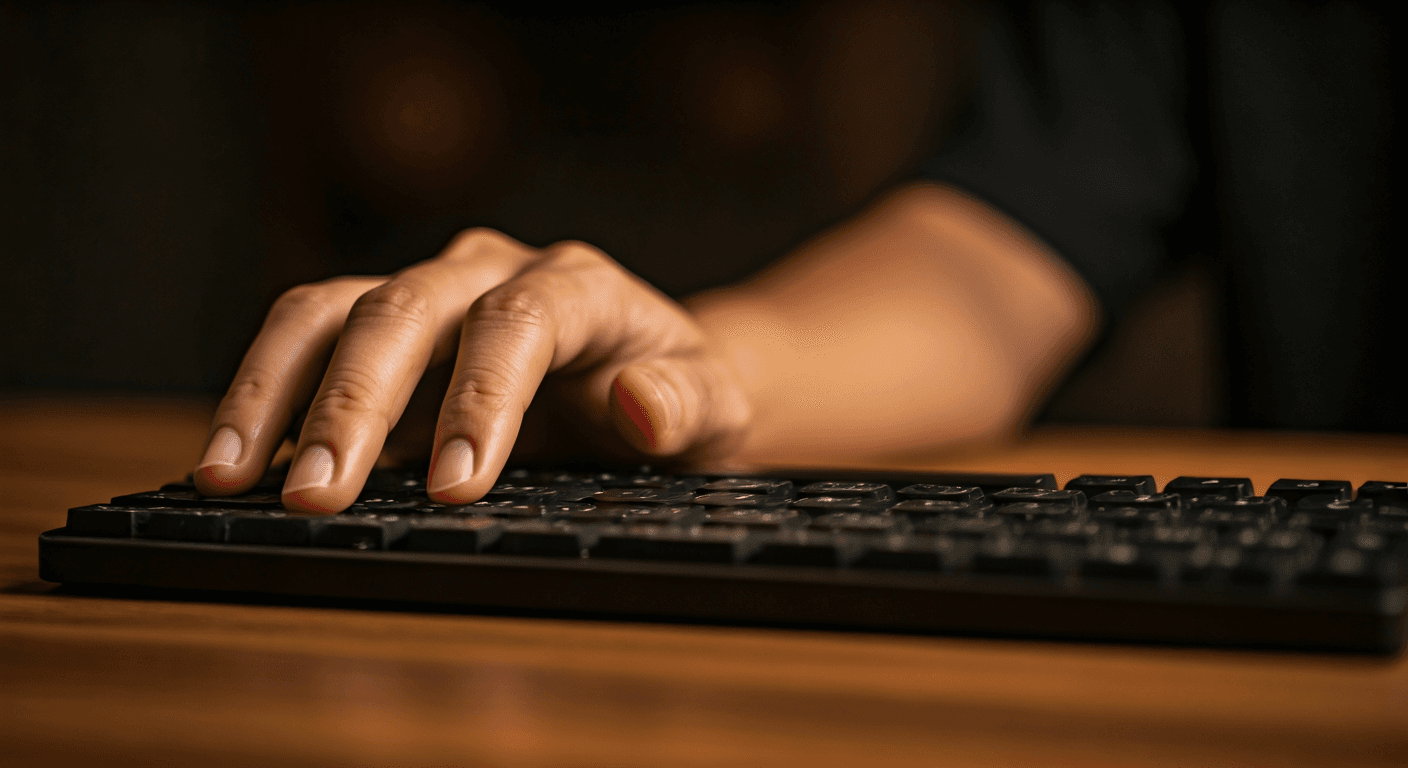
If you're typing with your left hand, your home position shifts. Place your index finger on F (where the raised bump is), and let your other fingers rest on D, S, and A. Your thumb handles the space bar. From there, your fingers reach right to cover the middle columns — T, G, B, Y, H, and sometimes even further depending on what you're typing. It takes practice to reach those far keys without looking, but your hand adapts faster than you'd think.
Right-hand typists do the mirror version. Home position on J, K, L, and semicolon, reaching left as needed. The thumb still handles space.
The biggest adjustment is accepting that you'll be reaching across the keyboard constantly. At first it feels slow and awkward. That's normal. Your brain is building a new motor map, and it genuinely does get easier with each session. The key is not to look down — fight the urge and let muscle memory develop.
One-Hand Keyboard Layouts
QWERTY was designed for two hands. If you're going to be typing one-handed long-term, switching to a layout designed for it can make a big difference.
- Dvorak Left-Hand Layout — developed specifically for left-hand typists. The most common letters are positioned under the strongest fingers of the left hand. It's built into most operating systems — you can enable it in your keyboard settings without installing anything.
- Dvorak Right-Hand Layout — the mirror version for right-hand typists. Same idea, optimized for the opposite hand.
- Mirrored QWERTY — this one is clever. You type normally with one hand, and when you hold the space bar (or another modifier key), the keyboard layout flips so the other half of QWERTY appears under your active hand. Your muscle memory from two-handed QWERTY partially transfers. Some people find this easier to learn than Dvorak.
Switching layouts has a steep initial cost — everything feels wrong for a few days. But if this is your long-term situation, the investment pays off. The Dvorak one-hand layouts in particular can meaningfully reduce finger travel and fatigue.
Software Tools That Help
Good software can close the gap between one-hand and two-hand speed more than most people expect:
- Sticky Keys — built into Windows, macOS, and Linux. Instead of holding Shift while pressing a letter, you press Shift once, then the letter. This eliminates two-key combos entirely. Turn it on immediately — it's the single most impactful accessibility setting for one-hand typists.
- Word prediction — tools like Lightkey (Windows) or the built-in text prediction on macOS and mobile can let you complete words after typing just a few characters. The time savings add up.
- Text expansion — apps like Espanso, TextExpander, or AutoHotkey let you type a short abbreviation and have it expand into a full phrase. If you type "omw" and it expands to "On my way!", that's three keystrokes instead of ten. Set up expansions for your most common phrases.
- Voice typing as a complement — tools like Google's voice typing, Apple Dictation, or Dragon NaturallySpeaking work well for longer passages. Most experienced one-hand typists use a mix of typing and dictation depending on the context. You type when precision matters and dictate when you need to get a lot of text down fast.
Practice Progression
Here's what a realistic timeline looks like when you practice consistently — about 15 to 30 minutes a day:
- Week 1 — everything is frustrating. You're probably at 5-10 WPM. You'll want to look at the keyboard constantly. That's fine. Focus on accuracy over speed. Developing correct finger habits now saves you months later.
- Week 2-4 — things start clicking. Common words begin to feel automatic. You might be around 10-20 WPM. The frustration fades as you start to notice real improvement between sessions.
- Month 2-3 — you're reaching 20-30 WPM. You can type without staring at the keyboard for most common words. Longer words and unusual letter combinations still slow you down, but your base speed is functional for everyday communication.
- Month 3-6 — with continued practice, many people reach 30-40 WPM. At this point, typing feels natural rather than effortful.
Don't compare yourself to your two-handed speed. That's a different skill. Compare yourself to where you were last week.
Realistic Speed Expectations
Let's be straight about the numbers. Most two-handed typists average 40-60 WPM. Experienced one-hand typists typically reach 30-50 WPM with consistent practice. Some go higher — there are people typing 60+ WPM with one hand — but 30-50 is a realistic, achievable range for most people.
That's fast enough for professional work. It's fast enough for long emails, reports, and chat conversations. Combined with text expansion and occasional voice typing, you can be just as productive as someone using both hands. The bottleneck in most knowledge work isn't typing speed anyway — it's thinking speed.
Hardware Options
If you want to go beyond software solutions, there's hardware designed for this:
- One-hand keyboards — products like the Matias Half-QWERTY keyboard or the FrogPad are built specifically for single-hand use. They're compact, reduce reach distance, and can feel more comfortable for extended sessions. They're not cheap, but if typing is a big part of your day, they're worth considering.
- Key remapping — even on a standard keyboard, you can remap keys to reduce awkward reaches. Moving Backspace, Enter, or modifier keys closer to your resting hand position can shave off a surprising amount of wasted movement. Tools like Karabiner (macOS), AutoHotkey (Windows), or xmodmap (Linux) handle this.
- Split or ergonomic keyboards — if you're using one half of a split keyboard, you already have a compact layout with less reaching. Some people find that using just the left or right half of a keyboard like the Ergodox or Corne works well.
Start with software changes first. They're free, and they'll tell you what hardware adjustments would actually help versus what's just a nice-to-have.
Getting Started
Here's the short version: turn on Sticky Keys right now, set up a few text expansions for phrases you type constantly, and commit to 15 minutes of focused practice each day. Don't overthink layout choices in the first week — just start typing and see how your hand adapts to QWERTY. If you're going to be at this long-term, explore Dvorak one-hand or mirrored QWERTY after you've built some basic comfort.
One-hand typing isn't a lesser version of typing. It's a different skill, and people get genuinely good at it. Give yourself the time to learn, and you'll get there.
Related posts
How to Improve Typing Accuracy (Without Slowing Down)
Practical accuracy drills and habits that cut your error rate without tanking your speed. A step-by-step approach for any skill level.

Typing Practice for College Students: Write Papers and Ace Exams Faster
How faster typing saves college students hours every week on essays, research papers, and timed exams.
How to Type Faster for Gaming: A Gamer's Guide to Keyboard Speed
Why typing speed gives gamers a real competitive edge in chat, commands, and coordination. Practical drills that transfer directly to gaming.
Published March 2026