
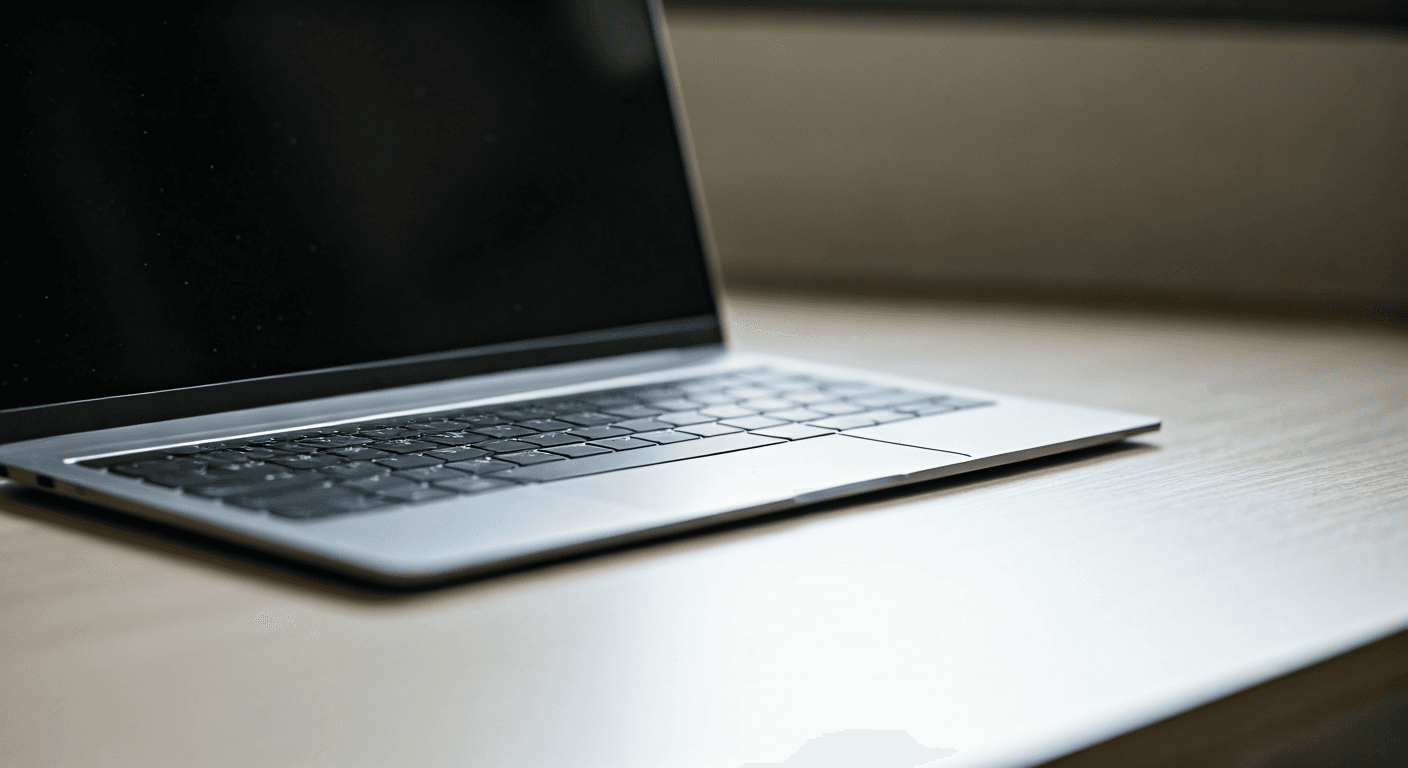
How to Type Faster on a Laptop Keyboard
I spend most of my working hours on a laptop. Not by choice, really — it's just the reality of bouncing between meetings, coffee shops, and a home office that doubles as a dining table. And for years, I noticed the same thing: I was measurably slower on my laptop than on a desktop keyboard. Not by a huge margin, maybe 10–15 WPM, but enough to feel it during long writing sessions. It took some deliberate adjustments to close that gap, and the fixes turned out to be simpler than I expected.
Why Laptop Keyboards Feel Slower
Before you can fix the problem, it helps to understand why laptop keyboards feel off compared to a standalone board. The biggest factor is key travel. Most laptop keyboards have somewhere between 0.7mm and 1.5mm of travel, compared to 3.5–4mm on a standard mechanical keyboard. That shallow travel means your fingers get almost no physical feedback when a key registers. Your brain fills in the gap by hesitating slightly on each press, waiting for confirmation that didn't quite arrive.
Then there's the layout. Laptop keyboards cram everything into a smaller footprint. The keys themselves are often narrower, and the spacing between them is tighter. If you've got larger hands, you're fighting the keyboard on every other word. There's no numpad, the arrow keys are usually shrunken into a corner, and function keys do double duty with brightness and volume controls.
Different laptops have their own quirks, too. MacBook keyboards since 2020 have a decent scissor mechanism, but the key caps are flat and wide, which can make your fingers slide if you're used to sculpted keycaps. ThinkPad keyboards are the gold standard for laptops — they have a slight curve to each key and surprisingly good travel for their size — but even they can't match a full desktop board. Chromebook keyboards tend to be the mushiest of the bunch, with a flat, membrane-like feel that gives almost no tactile response. Knowing your laptop's specific weaknesses helps you figure out what to compensate for.
Adjusting Your Technique for Flat Keys
The single biggest technique change that sped up my laptop typing was learning to press lighter. On a desktop keyboard with full travel, you can afford to slam keys and bottom out on every press — the long travel absorbs the impact. On a laptop, bottoming out happens almost instantly, and all that extra force just jams your fingertips into a hard surface. It's tiring, it's loud, and it slows you down because each impact creates a tiny recovery delay before your finger can move to the next key.
Try this: consciously reduce your typing force for ten minutes. Pretend the keys are fragile. You'll probably feel awkward at first, like you're not pressing hard enough, but watch your screen — every keypress is still registering just fine. Laptop keys actuate with very little force. Once you train yourself to trust that, your fingers move faster because they're not wasting energy on unnecessary impact.
The other technique shift is reducing finger lift height. On a full-travel keyboard, your fingers naturally rise higher between presses because they need to clear the taller keys. On a laptop, that same finger lift is wasted motion. Keep your fingers hovering just a millimeter or two above the key surface. Think of it like gliding rather than pecking. This alone can shave noticeable time off your typing once it becomes habit.
Posture Fixes Specific to Laptops
Laptops create a posture problem that desktops don't: the screen and keyboard are attached. If the screen is at a comfortable viewing height, the keyboard is too high. If the keyboard is at a comfortable typing height, you're hunching down to see the screen. There's no winning this tradeoff without external hardware, so you have to pick your compromise.
For typing speed specifically, prioritize keyboard position over screen position. That means your laptop should be on a surface where your elbows can bend at roughly 90 degrees with your forearms parallel to the floor. For most people sitting at a standard desk, this is about right. The screen will be a little low, but you can tilt it back to reduce neck strain. What you absolutely want to avoid is typing with the laptop on your actual lap for extended sessions. Your wrists end up bent at an awkward angle, your shoulders hunch forward, and your speed tanks because your whole upper body is fighting the position.
Wrist position matters more on laptops than on desktop keyboards. Because laptop keyboards sit so low on the chassis, there's a tendency to rest your wrists on the palm rest and type from that anchored position. This locks your wrists in place and forces your fingers to stretch for keys instead of letting your whole hand float and reposition. Try lifting your wrists slightly so they hover above the palm rest. It feels less relaxed at first, but your fingers gain a lot of range and speed because they're not compensating for a fixed wrist.
The External Keyboard Question
I know the obvious advice is "just use an external keyboard," and sure, if you're at a fixed desk most of the time, that's the right call. A compact Bluetooth board like the Keychron K3 or the Logitech MX Keys Mini gives you better key feel without taking up much bag space. But let's be honest — most people asking how to type faster on a laptop are asking because they don't want to carry extra gear, or they can't always set up a second keyboard.
Here's my rule of thumb: if you type more than three hours a day at the same desk, an external keyboard is worth it, full stop. The comfort and speed gains pay for themselves in a week. But if you're genuinely mobile — moving between locations, working from couches and coffee shops — then learning to type well on your laptop's built-in keyboard is a more practical investment. The techniques in this article will get you most of the way there.
If you do go the external route but want to stay portable, look for slim mechanical or low-profile boards. They fold the gap between laptop-style keys and full mechanical switches. Some even match the footprint of a 13-inch laptop, so they slide right into a bag without adding bulk.
Laptop Typing on the Go
Typing in a coffee shop is different from typing at your desk, and not just because of the noise. Tables at cafes are often higher than standard desk height, which pushes your elbows into an uncomfortable angle. If you can, pick a seat where the table height lets your forearms stay roughly level. Failing that, sit on something taller or stack a book under yourself — it sounds ridiculous, but that elbow angle makes a real difference.
Planes are the worst typing environment on earth. Tray tables are tiny, the person in front of you reclines into your screen, and turbulence turns every sentence into an adventure. My only real advice for airplane typing: tilt your screen back further than you normally would, keep your elbows tucked in, and accept that you're going to be slower. Don't fight it. Focus on accuracy instead of speed and clean up later.
Libraries and quiet spaces have a different challenge: noise. Laptop keyboards are louder than you think, especially if you're a heavy typist. This is actually another argument for developing a lighter touch — you'll bother fewer people and type faster at the same time. If your laptop has a particularly clacky keyboard, a silicone keyboard cover can dampen the sound, though it does slightly change the key feel.
Practice Tips for Laptop Users
Generic typing practice advice works fine on a laptop, but a few specific drills help you adapt to the quirks of a flat keyboard faster.
- Do your practice sessions on the laptop, not on an external keyboard. This sounds obvious, but if you practice on a nice mechanical board and then switch to your laptop for real work, the muscle memory doesn't transfer cleanly. Practice where you perform
- Focus on accuracy before speed. Laptop keys are close together and it's easy to clip neighboring keys. Spend a week prioritizing zero errors over hitting a WPM target. The speed comes back naturally once your fingers learn the tighter spacing
- Practice common shortcuts specific to your operating system. On macOS, the Command key sits where Alt usually is, which trips up switchers constantly. On Chromebooks, the Search key replaces Caps Lock. Drilling these shortcuts until they're automatic keeps your flow going when you need to select, copy, or switch tabs mid-sentence
- Run typing tests at different times of day. You'll notice your laptop typing speed varies more than desktop speed because posture and fatigue play a bigger role. Identify when you're slowest and figure out whether it's a posture issue, a tired-fingers issue, or just an energy-level issue
- If your laptop has a particularly bad keyboard, consider a typing test as a baseline, then retest after a week of conscious technique adjustment. Seeing the numbers improve is motivating and confirms that the lighter-touch approach is working
Ultimately, typing fast on a laptop is about accepting that it's a different instrument and adjusting accordingly. You wouldn't play an acoustic guitar the same way you play an electric — the technique shifts to match the tool. A lighter touch, lower finger lift, mindful posture, and practice on the actual keyboard you use daily will close the speed gap faster than any gear purchase. Give it two weeks of deliberate attention. You'll be surprised how much faster your laptop starts to feel.
Related posts
How to Improve Typing Accuracy (Without Slowing Down)
Practical accuracy drills and habits that cut your error rate without tanking your speed. A step-by-step approach for any skill level.
Best Keyboards for Fast, Comfortable Typing in 2026
An honest guide to choosing a keyboard that actually makes you type faster and more comfortably. Covers mechanical, membrane, and ergonomic options at every budget.

Typing Practice for College Students: Write Papers and Ace Exams Faster
How faster typing saves college students hours every week on essays, research papers, and timed exams.
Published March 2026